Active Alarms
The Active Alarms page displays all alarms for managed customers. Management includes performing actions such as deleting, acknowledging, and saving alarms to file, as well as monitoring active alarms in the network to determine network health.
Customers can monitor authentication failure alarms with the Live Platform server connection.
|
1.
|
In the Menu bar, choose Alarms and then select the Active tab. |
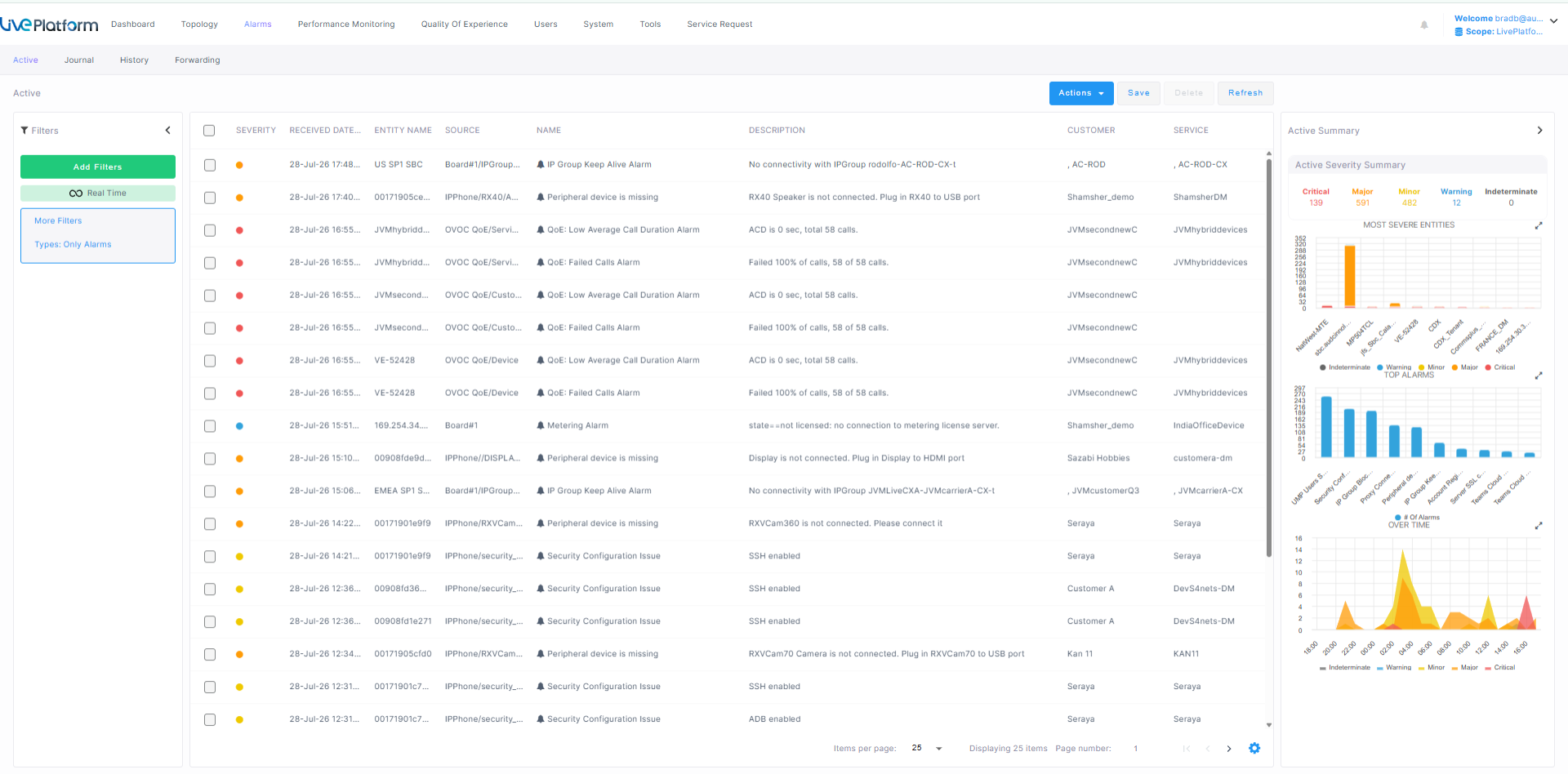
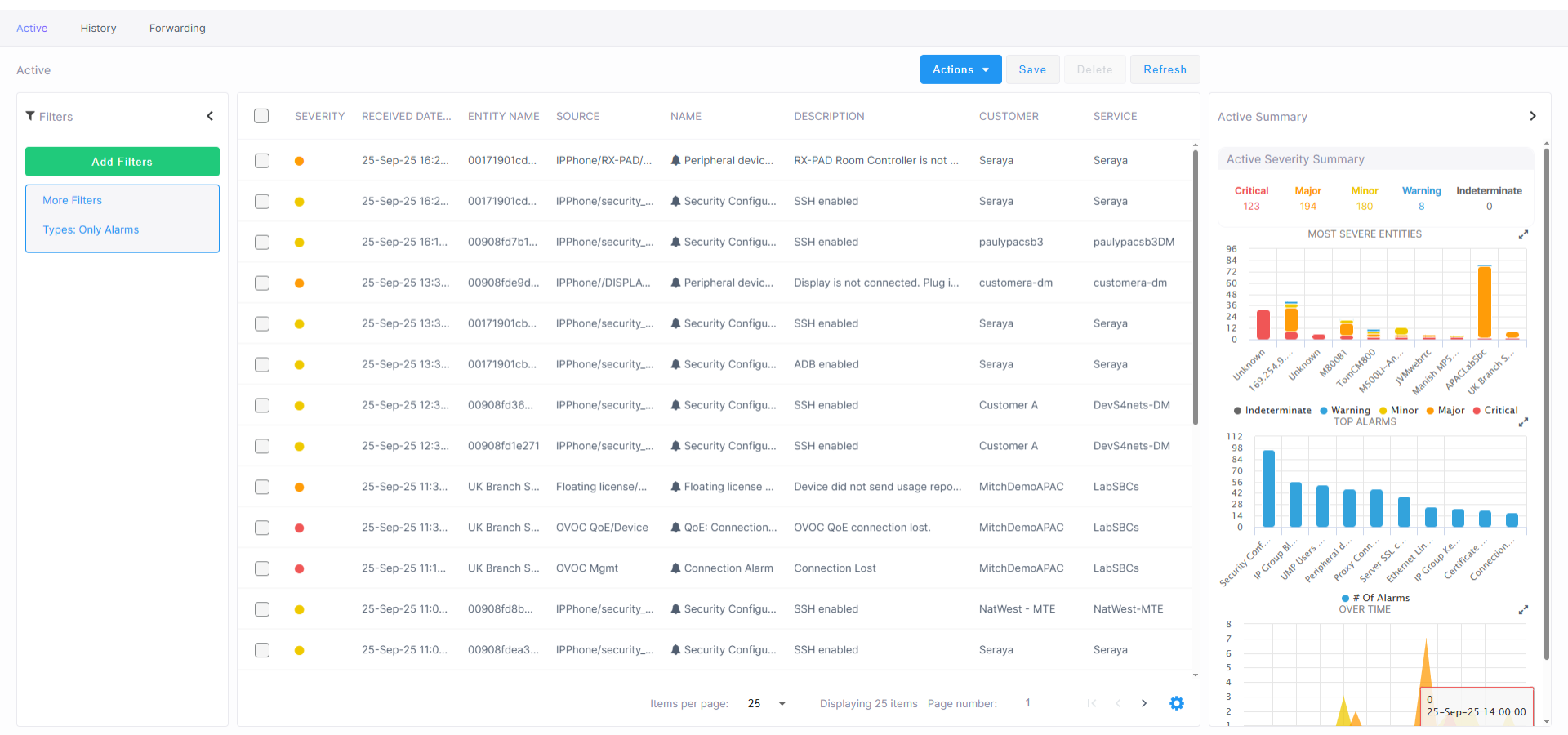
|
■
|
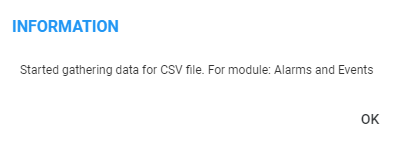
Active Alarms can be saved to a CSV file. A CSV file is generated which you can save to your PC. In the menu bar, click Save to save Active alarms table to a CSV file. |

|
■
|
In the menu bar, from the Actions drop-down, select Stop Auto Refresh to stop the automatic refreshing of the Active Alarms page. |
|
■
|
In the menu bar, from the Actions drop-down, select Enable Alarms Sound to hear a tone each time an alarm is reported. |
|
■
|
In the menu bar, from the Actions drop-down, select the relevant alarm and select Acknowledge to acknowledge the receipt of the alarm. |
|
■
|
In the menu bar, click Refresh to refresh the page. |